
How to edit an episode with AI
Most of the slow parts of editing are automatic here. You run a few AI actions, then fine-tune by editing the transcript instead of dragging waveforms.
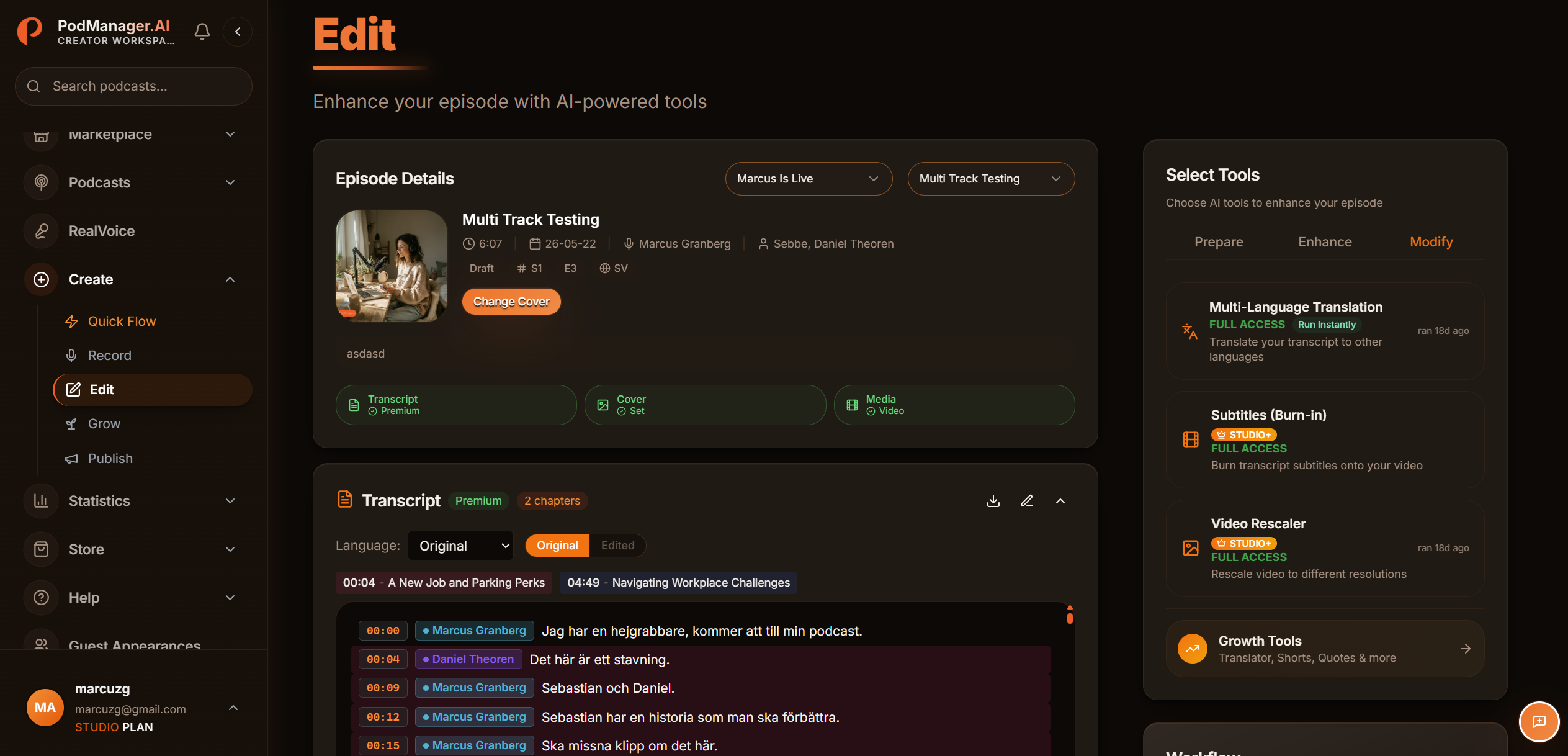
Before you start
- Open the episode you recorded or uploaded.
- Some actions use credits (PodCoins). Your plan includes a monthly allowance.
- 1
Open the editor
Open your episode and switch to the edit view. You will see the audio, the transcript, and the AI tools.
- 2
Run the cleanup tools
Apply silence removal and filler-word removal, then per-speaker leveling and noise reduction. These run automatically across the episode.
- 3
Edit by editing the transcript
Delete a sentence in the transcript and the matching audio is removed. This is the fastest way to cut tangents and mistakes.
- 4
Add chapters and polish
Let the chapter detector mark topics, then add an intro or outro and any music beds. Music ducks under speech automatically.
- 5
Preview and confirm
Play back the edited episode to confirm it sounds right, then save. Your edits are non-destructive, so you can revise later.
Tips
- Filler-word removal supports several languages, including English, Spanish, French, German, and Swedish.
- Start with the loose silence preset, then tighten it if you want a snappier pace.
Frequently asked questions
- Will AI editing change how I sound?
- The cleanup tools remove gaps and noise and balance levels. They do not change your voice. Voice generation is a separate, opt-in feature (RealVoice).