
How to clone your voice with RealVoice
RealVoice lets you generate natural audio in your own voice. It is useful for fixing a flubbed line, adding an intro, or producing an ad read without going back to the mic.
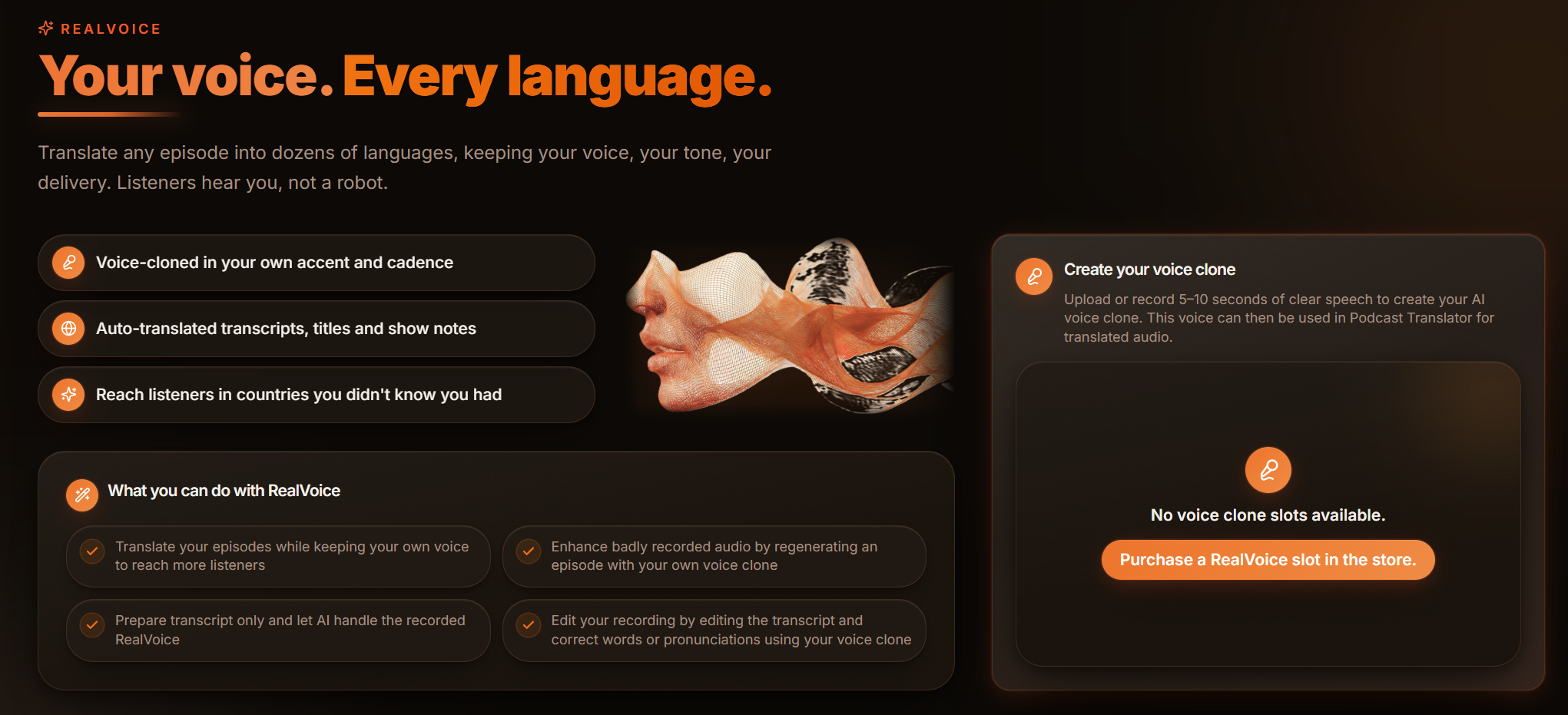
Before you start
- Voice cloning is available on higher plans, with additional voice slots available to purchase.
- Record a short, clean voice sample in a quiet room for the best result.
- 1
Open RealVoice
Go to the RealVoice area to set up a new voice.
- 2
Add your voice sample
Upload or record a short voice sample so the model can learn how you sound.
- 3
Generate audio from text
Type the line you want, choose your cloned voice, and generate the audio.
- 4
Drop it into your episode
Use the generated clip as an intro, outro, correction, or ad read in your episode.
Tips
- Use RealVoice for short fixes and inserts. It saves a trip back to the studio for a single line.
Frequently asked questions
- Is this my actual voice?
- It is a clone trained on your sample. Keep your sample clean and representative for the most natural result.